Your model is orange right now. It doesn't have to be, and it can stand on someone's desk
 Michal FantaAlso available inCS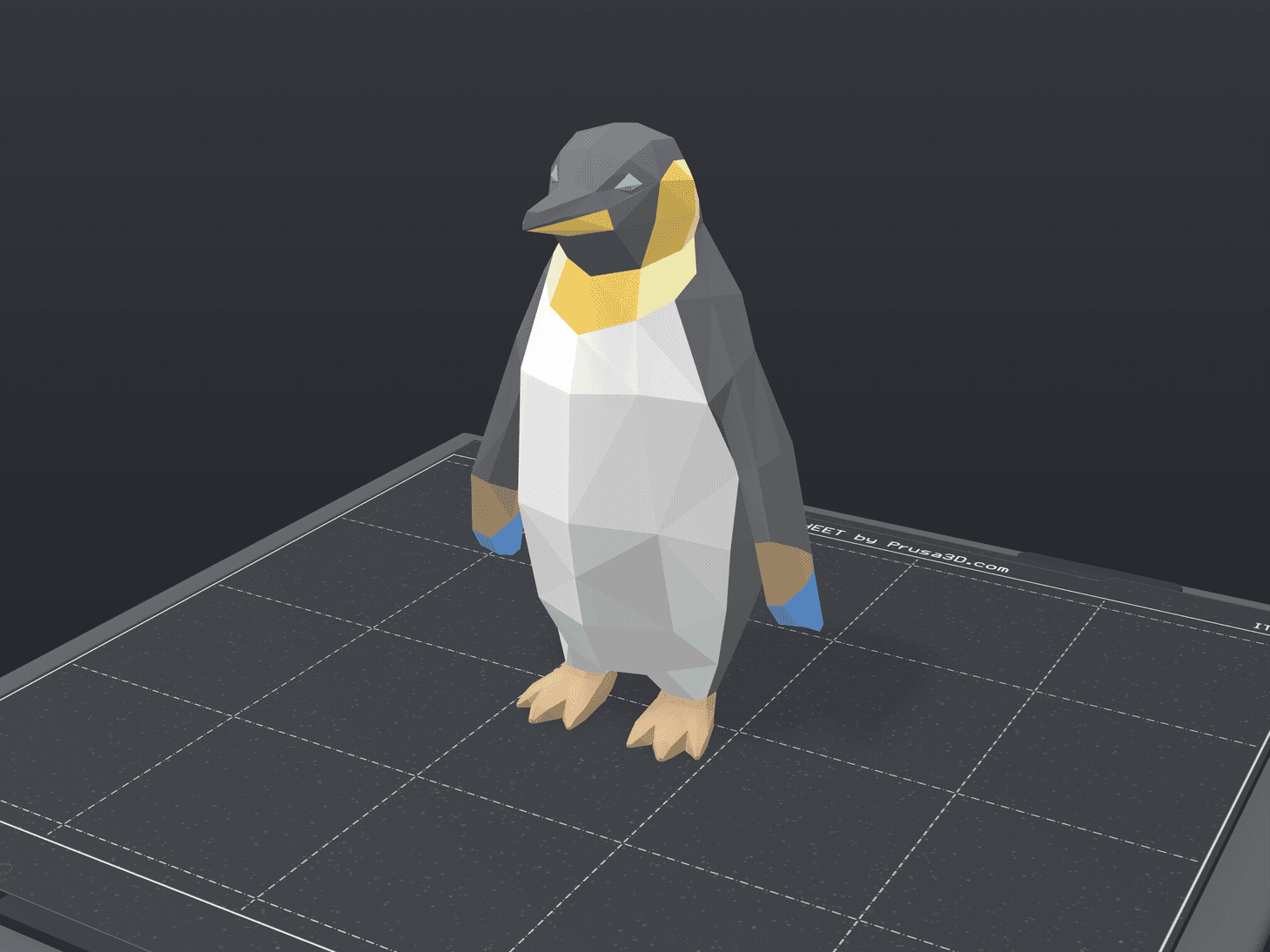
A while back I wrote here about Preview3D - an app that opens a 3D model or a G-code file on a Mac, iPad or iPhone before you can start a slicer. A few things have happened since, but one of them deserves an article of its own, because it concerns everybody who publishes here.
That orange preview
You publish a model. You upload photos, maybe from several angles. Printables adds a 3D preview of the first file on top of that - and it is always orange.
On a single-colour print that doesn't matter. On a multi-colour one it loses exactly what you painted it for. Two hours of painting in the slicer, and what arrives on the page is an orange figurine.
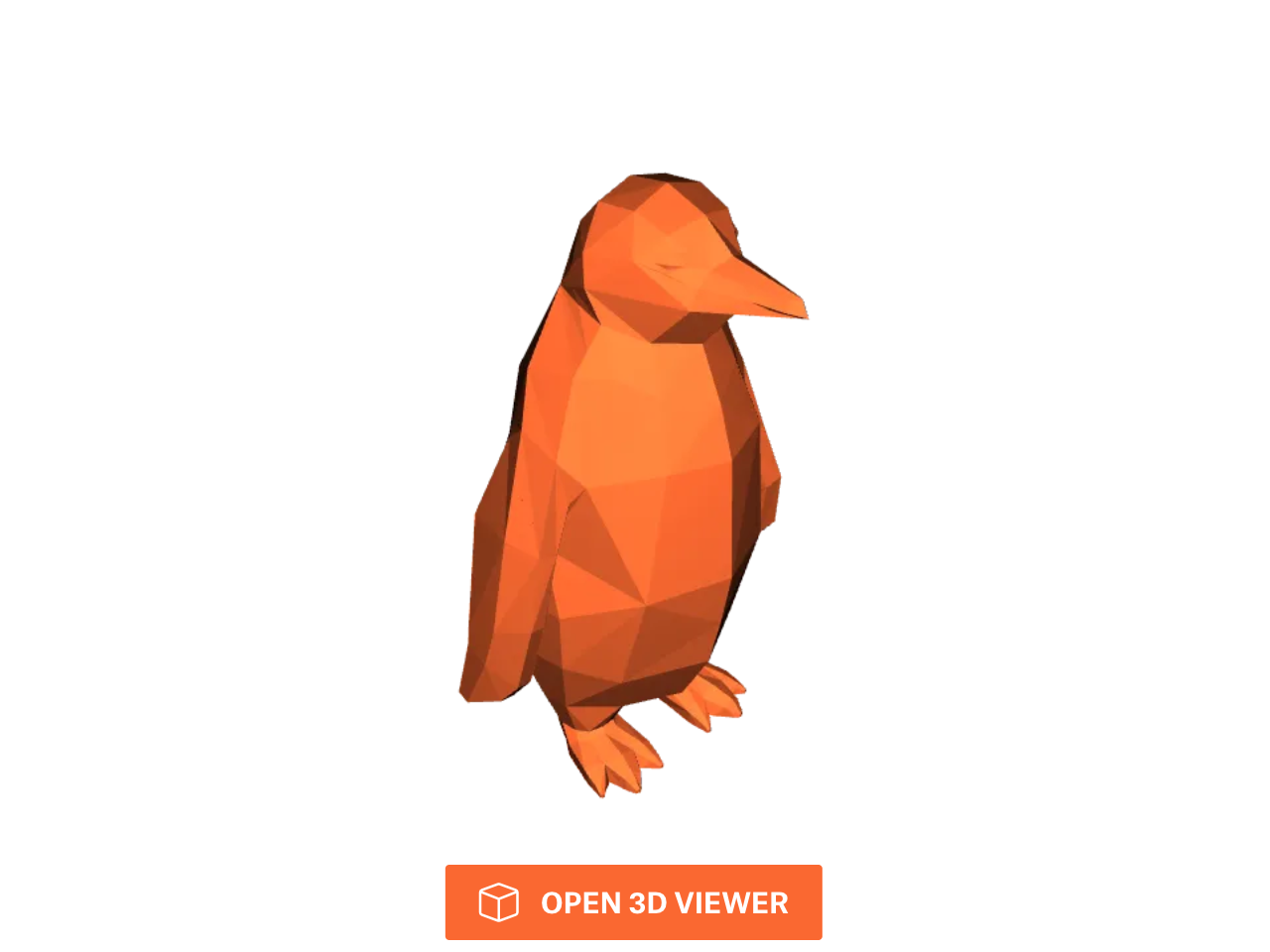
A picture in which the model keeps its colours
Paint the model in PrusaSlicer, upload it here as a 3MF, and then paste your model's address into (it is made right in your browser - nothing is uploaded anywhere, nothing is registered, and you don't need to own the app to make one). You get an animated picture in which the model turns in its own colours - standing on a print sheet, as if somebody had just taken it off the printer.
That picture belongs in the gallery or in the model's description. It is the place where you can see what the print really looks like from every side, before anybody prints it.
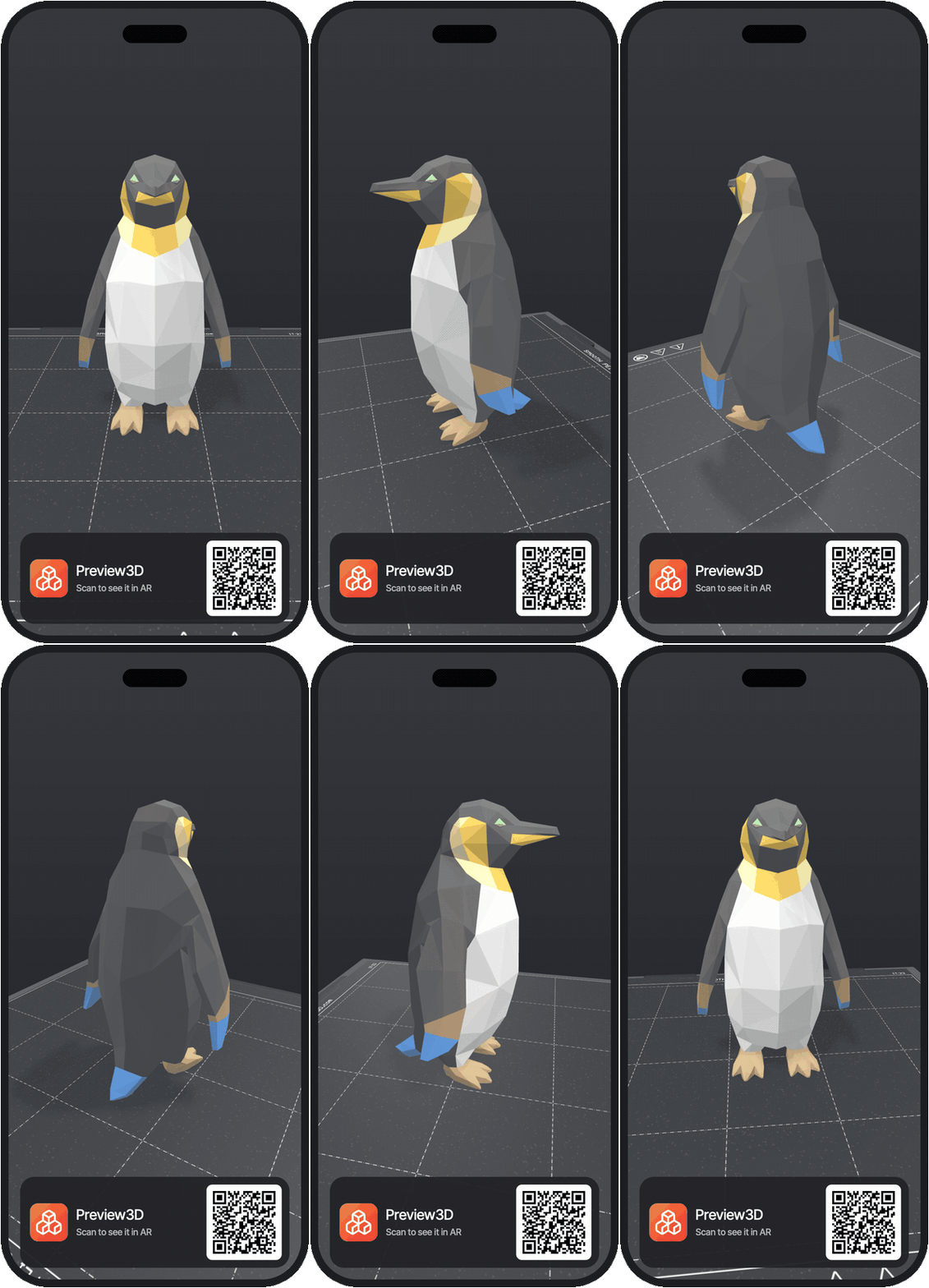
And now the main thing
In the corner of the picture there is a QR code. Scan it with an iPhone or iPad and within seconds the model is turning on the screen - and one tap later it is standing in AR on your desk, in colour, with a shadow. You can walk around it.
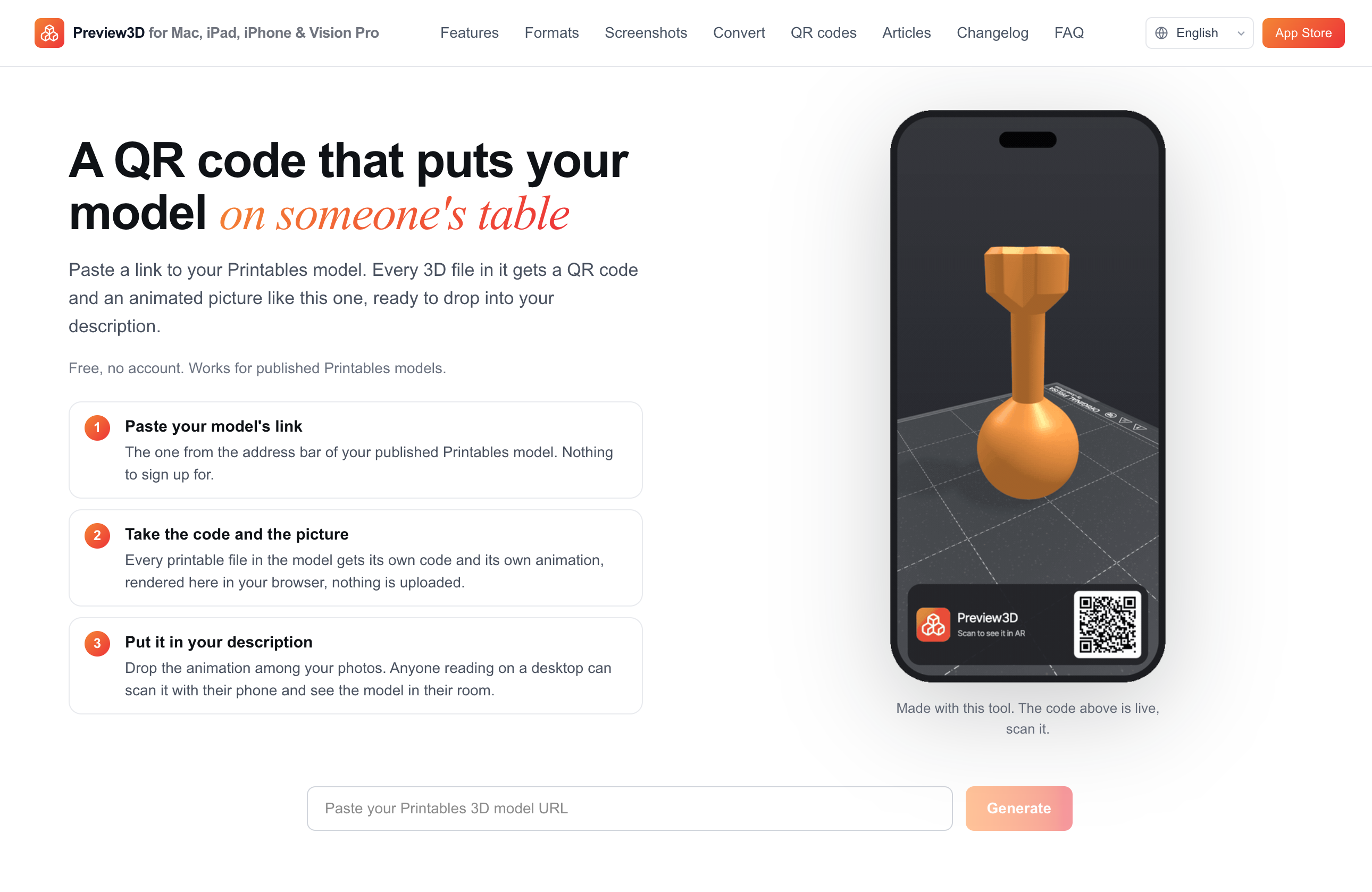
Without installing anything. The code opens an App Clip: a small piece of Preview3D that downloads itself, shows the model and disappears again. No App Store, no account, no purchase.
https://preview3d.xfanta.com/qr
What the person scanning sees
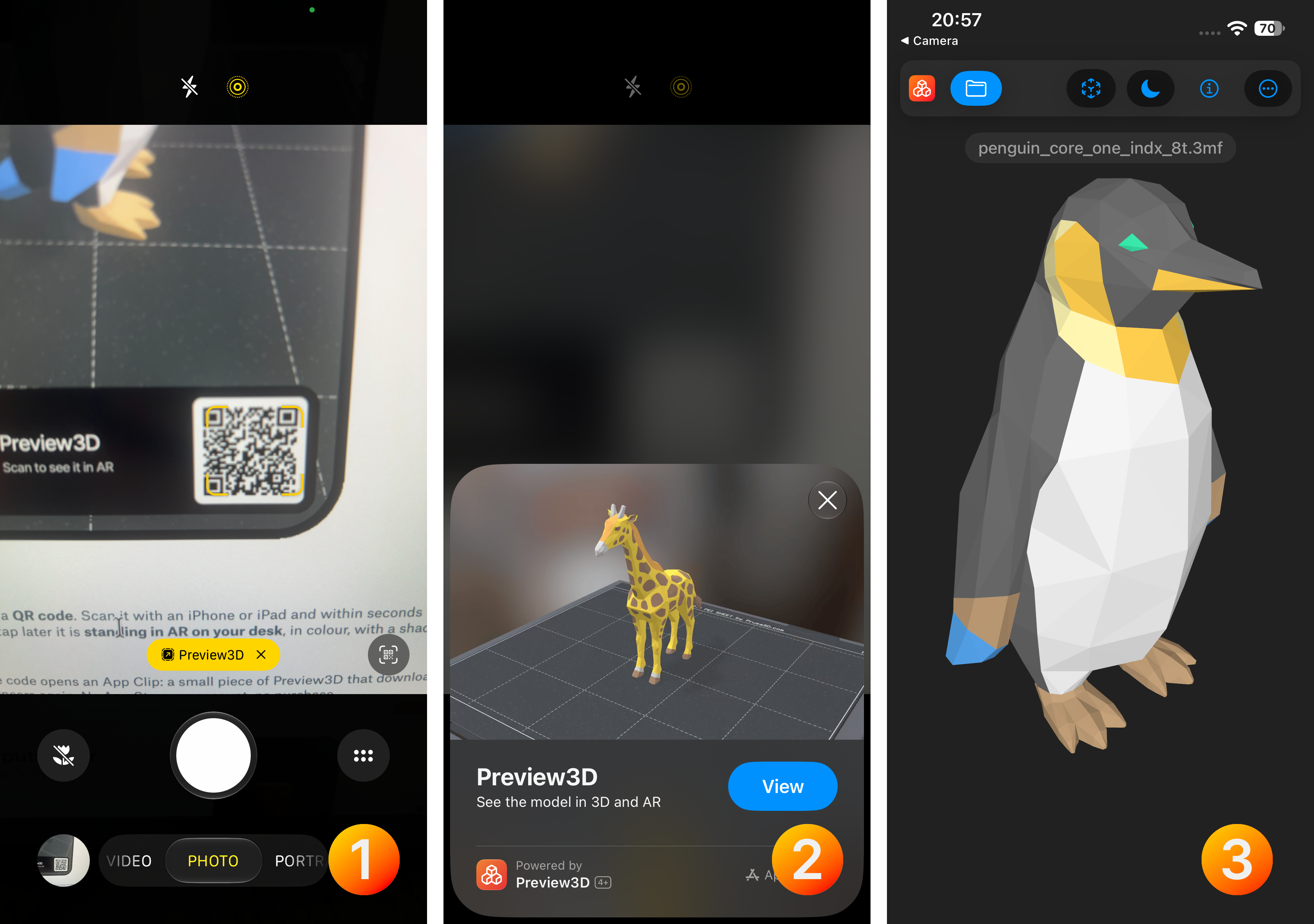
They point the camera at the code.
A card slides up from the bottom with a preview and an Open button.
They tap and the model is turning on the screen. The "View in AR" button puts it in the room.
Anyone scanning on Android, or sitting at a computer, lands on a page where the same model turns in the browser. They miss out on AR, not on the model.
Where the code points
The code carries a short address of the form preview3d.xfanta.com/ar/<model>/<file>.
What to watch out for
Three things, without which this wouldn't work for you:
Paid models. Printables won't hand the file to anyone who isn't signed in, and an App Clip isn't signed in — so the code would lead to a page that can never load the model. The generator spots this and tells you. On free models everything is fine.
The model has to be published. While it is still a draft, the file id that goes into the code doesn't exist yet.
Colours come from PrusaSlicer for now. The generator reads filament painting from PrusaSlicer projects. A model painted in Bambu Studio will render, but in a single colour. The app on the Mac already reads both; the generator on the web is still catching up.
What has happened in the app since last time
While I'm here, three things you probably care about more than I do:
Preview3D is on iPhone, iPad and Vision Pro now. Same purchase, no second payment. On a phone it makes sense differently than on a Mac - "somebody sent me a file, what is it" is a situation that happens exactly where you are.
Colours from both slicers. The app reads filament painting from PrusaSlicer and from Bambu Studio, including the palette the project has set. The model appears in the colours it will be printed in.
A model check. The Info panel has a button that says whether the model is closed, how many holes it has, how many non-manifold edges, flipped or zero-area triangles, and how many separate parts it falls into. It repairs nothing and touches no file - it just tells you where you stand before you send the model to the printer.
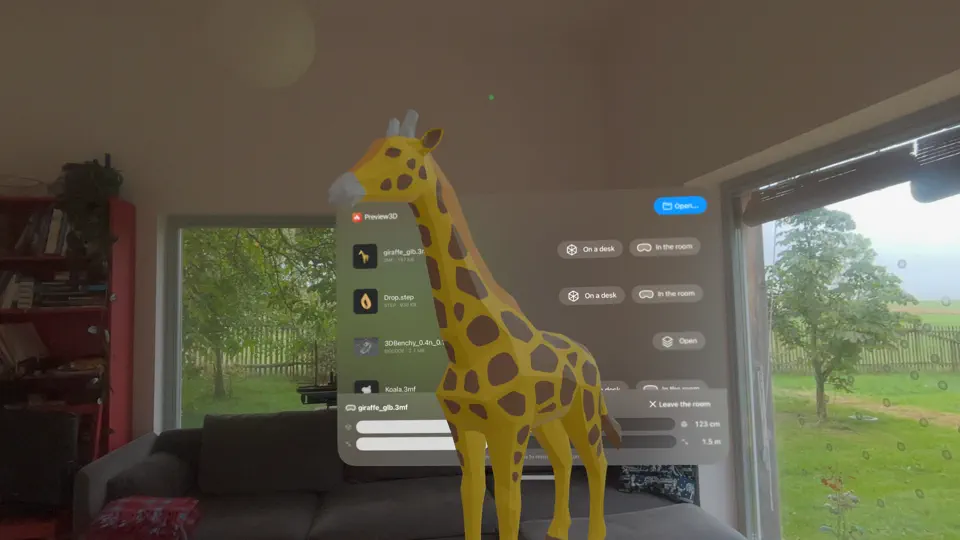
What's coming
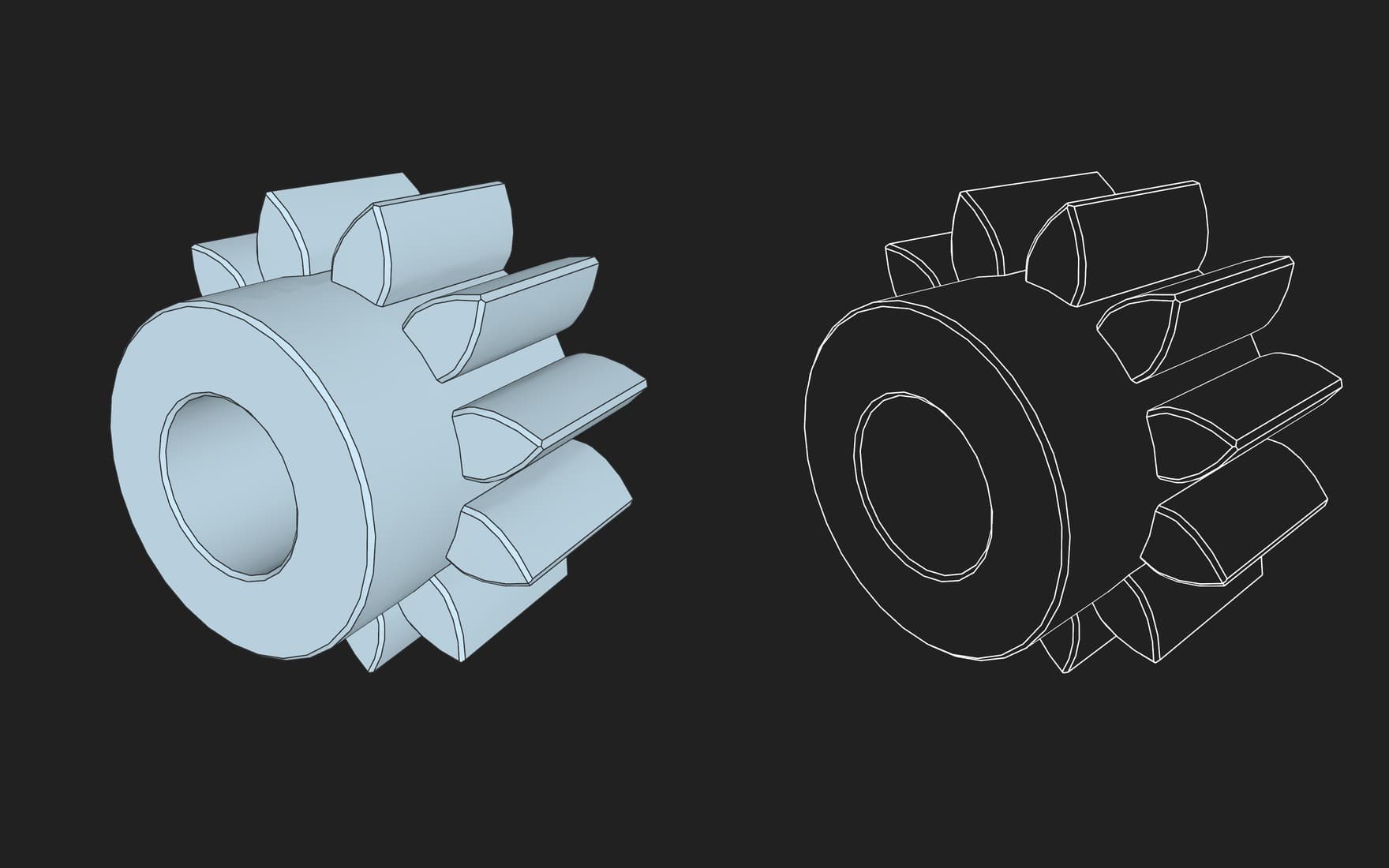
The next version adds wireframe and edge display: the model can be shown shaded, shaded with its edges, or as a wireframe alone. For a STEP file those are not the boundaries of triangles but the real edges the CAD system drew.
Along with it, the STEP kernel gets a handful of fixes you will notice mostly on small parts.
Preview3D is a native viewer for 3D models and G-code on Mac, iPad, iPhone and Apple Vision Pro. STEP, STL, OBJ, PLY, glTF/GLB, 3MF, USDZ, G-code and more — Finder previews, export between formats, PMI and GD&T for AP242.
$9.99 once, no subscription, no account. One purchase covers every device. The app has no network access; everything runs on your machine.
Requires macOS 14, iOS/iPadOS 17 or visionOS 2.
If you make a picture for your own model, write to me in the comments — I want to know whether people really scan these, or whether it is an idea that looks better than it works.
This article was first published on Printables.

Comments
No comments yet. Be the first.