Preview3D - quick previews of 3D models and G-code, with export
 Michal FantaAlso available inCS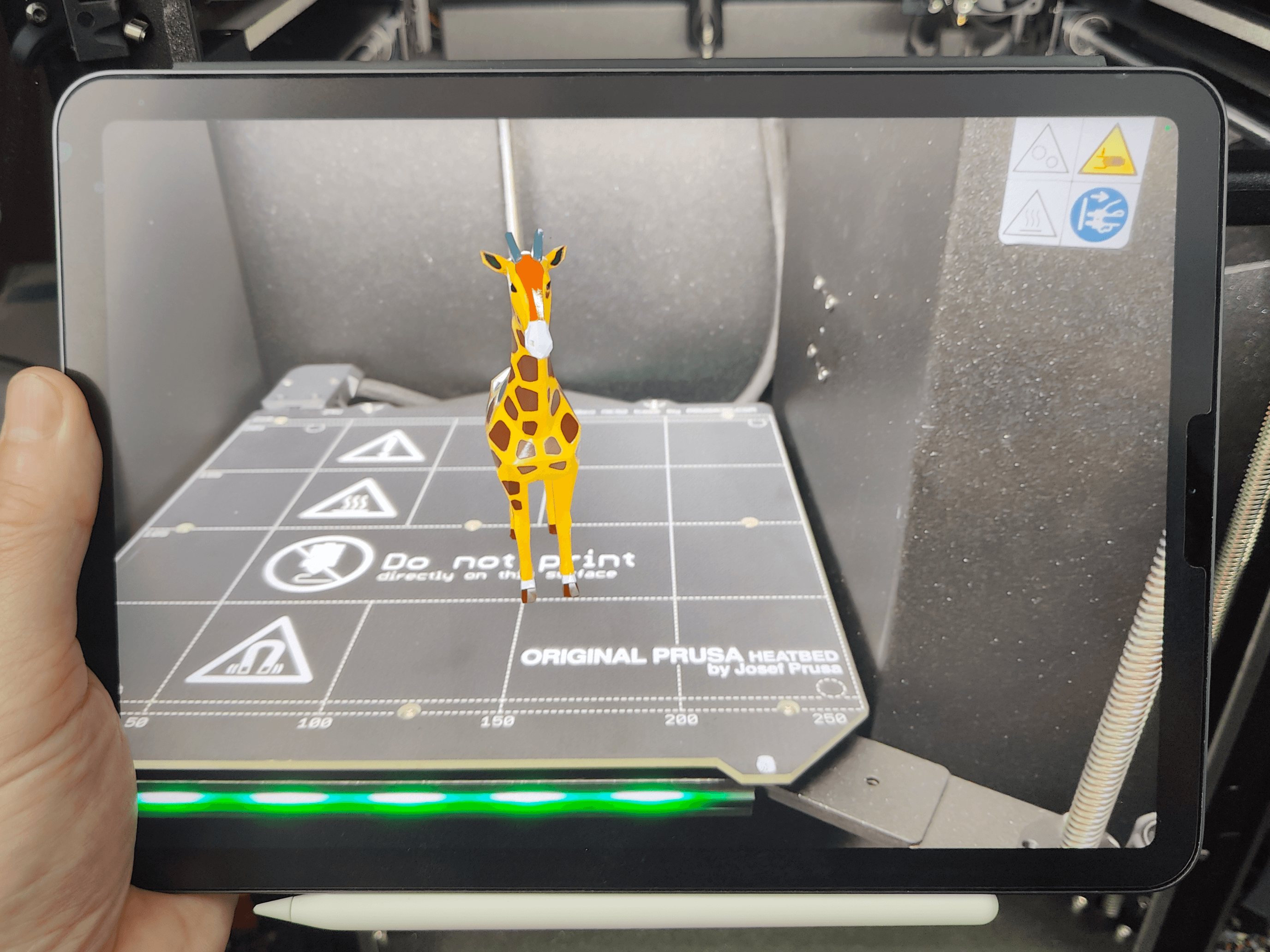
Preview3D
Back when I was still on Windows, I installed PowerToys and suddenly had PrusaSlicer G-code previews right in File Explorer. It was a pleasant surprise. When I later moved to macOS, I quickly got used to previewing files in Finder with the space bar.
What I missed were previews and thumbnails for STEP files, which I use more and more. So I started building Preview3D, a macOS nad iPad app that brings Quick Look previews and Finder thumbnails to STEP files.
Before long, support grew beyond STEP to include many of the 3D formats I work with every day.
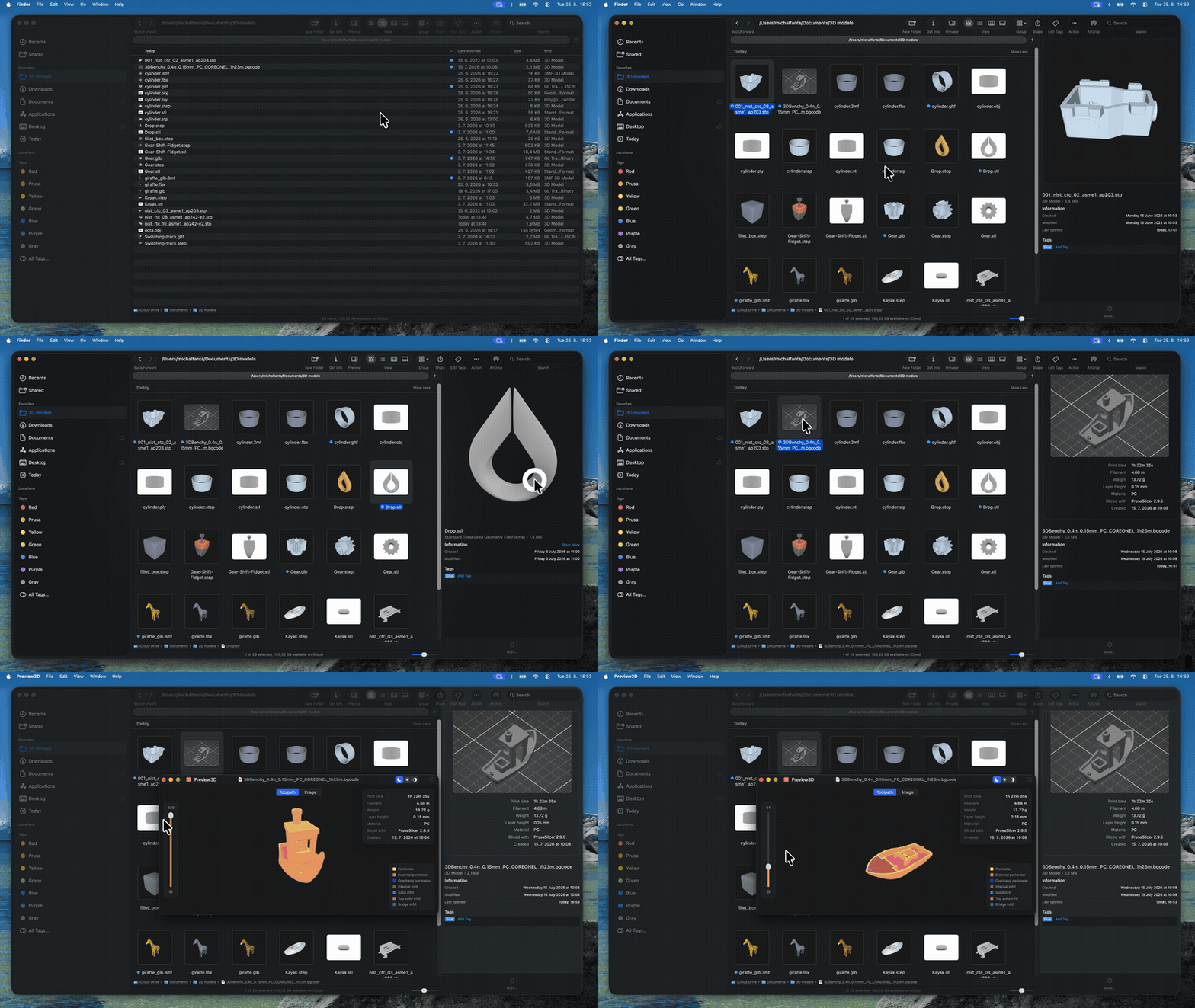
I ended up adding support for the common 3D formats too, so there'd be no need for a separate app per format. Besides Quick Look, the app also generates the thumbnails shown in the Finder - so a folder full of CAD exports stops looking like a folder full of blank sheets of paper.
And once I had previews of 3D models, including colour rendering of models painted in PrusaSlicer as 3MF, I decided to add G-code previews as well, to make the support for 3D printing complete.
Building the iPad version wasn't that hard after that, and being able to look at a model in AR comes in handy now and then.
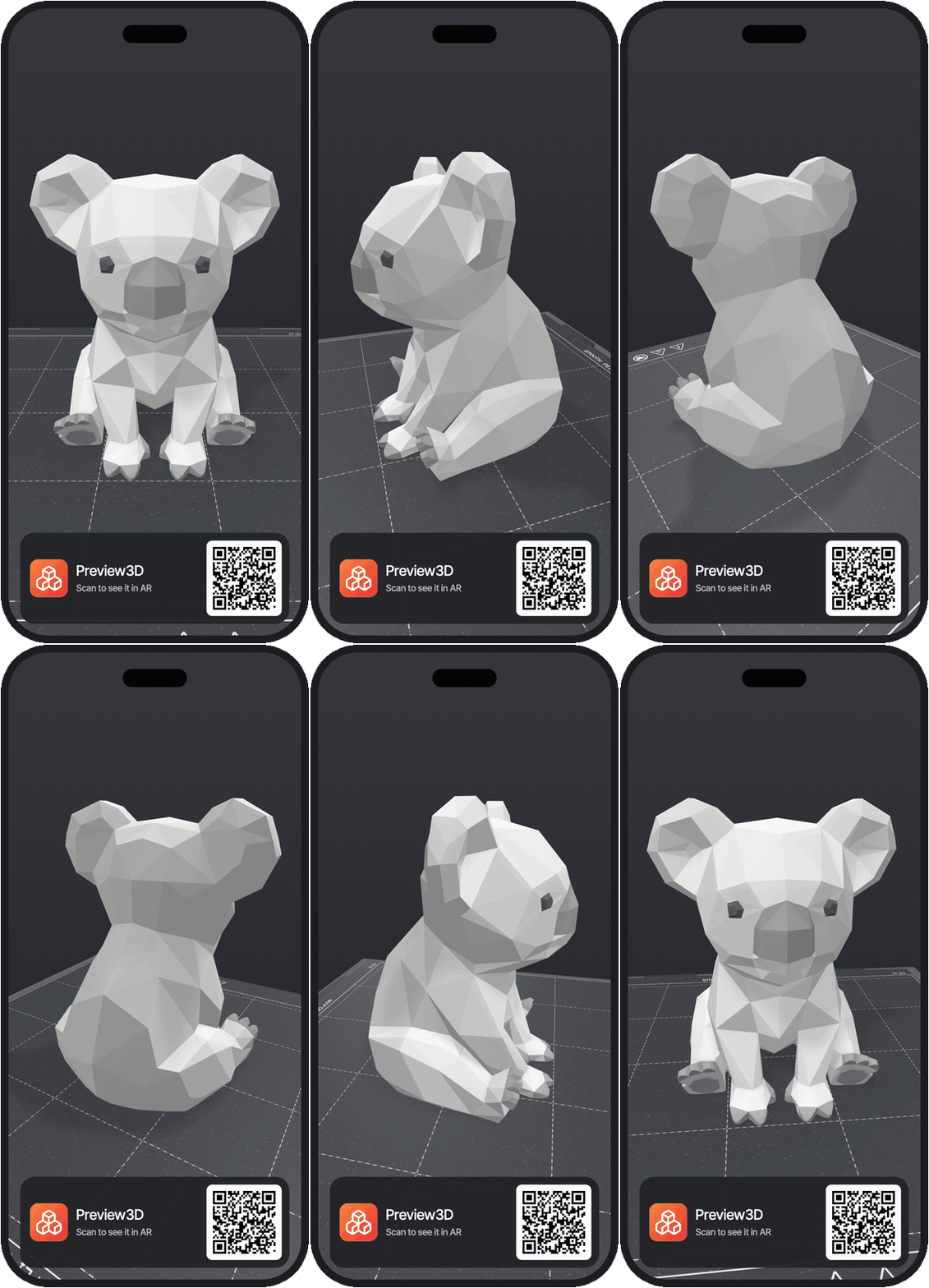 | UpdateSeptember 2026 A fair bit has happened since this was written. Preview3D now runs on iPhone and Apple Vision Pro as well as Mac and iPad - same purchase, no second payment. It reads the colours of multi-colour 3MFs from PrusaSlicer and from Bambu Studio, so a model shows in the colours it will be printed in. And the Info panel has gained a model check: whether the mesh is closed, how many holes and non-manifold edges it has, and how many separate parts it falls into. Most of all: for your model here on Printables you can now generate an animated picture in which the model keeps its own colours - with a QR code in the corner that lets anyone stand it on their desk in AR, without installing anything. I wrote a separate article about it: Your model is orange right now. It doesn't have to be, and it can stand on someone's desk. |
|---|
Supported formats
The app handles roughly twenty formats. The ones you're likely to use:
STEP and STP - CAD data from suppliers and from your own designs
3MF - including multi-colour projects from PrusaSlicer
G-code and binary .bgcode - the output from your slicer
STL, OBJ, PLY - the classics for 3D printing and meshes
glTF, GLB, USDZ, DAE - models for the web and AR
FBX, 3DS, X3D, LWO and more - via the Assimp library
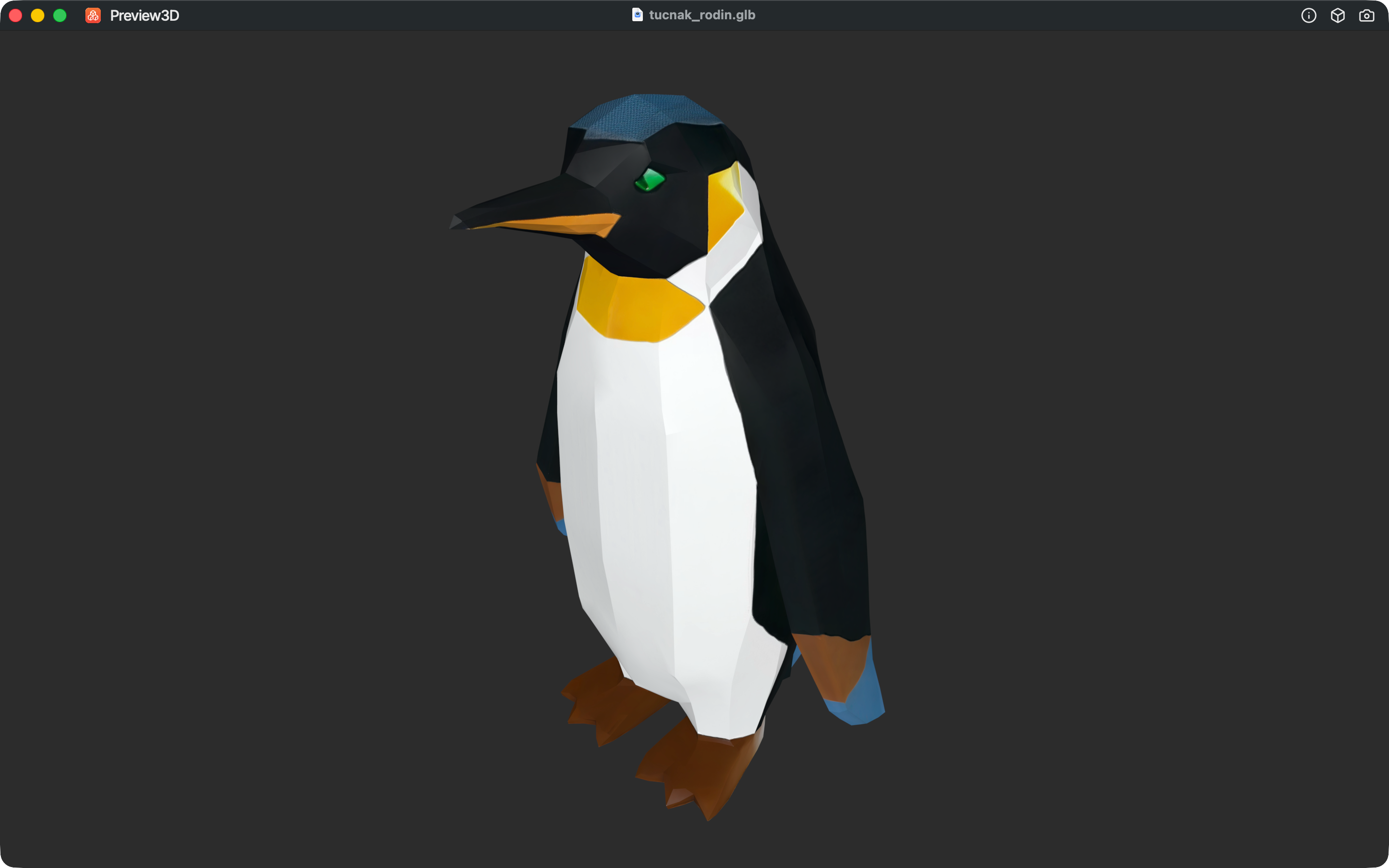
The interesting ones are the formats macOS can't handle on its own. STEP, painted 3MF, FBX and 3DS won't render without help - and that's exactly where the difference shows up between a blank icon and "I can see what this is".
STEP - the format that started all this
I soon found out it wouldn't be that simple. For tessellation - turning a B-rep solid into a triangle mesh - there's no available library I could have used in a macOS app.
So I wrote my own. It's called StepKit, it's written entirely in Swift, and it takes care of both reading STEP files and turning them into triangles.
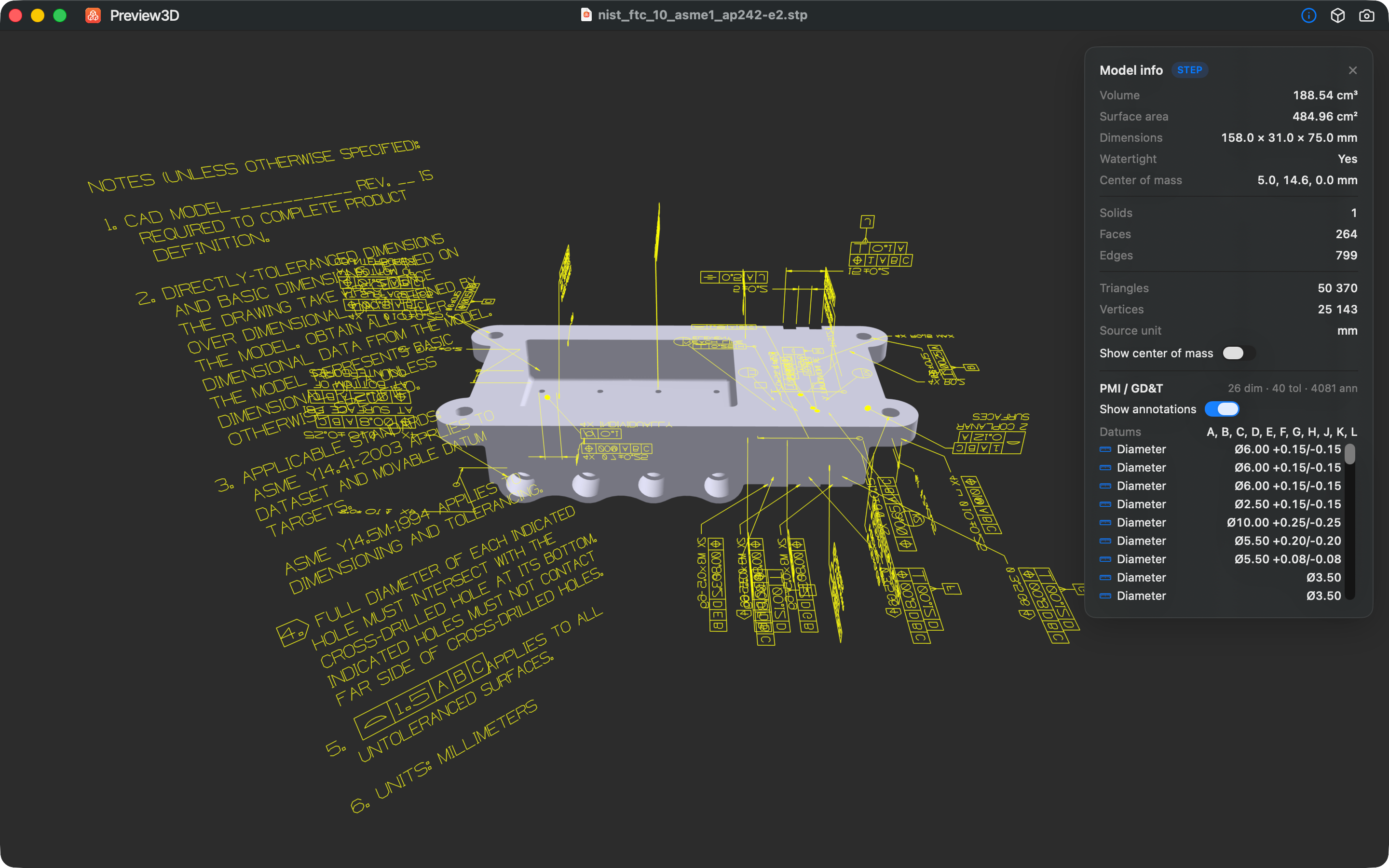
Thanks to it you can view simple parts as well as complex assemblies. An assembly shows a part tree - click a part to highlight or isolate it, and you can export just that one part.
The app also shows detailed information about the model: volume, surface area, centre of mass, bounding-box dimensions, the number of faces and edges, and whether the model is watertight. For STEP files it additionally reads PMI - the dimensions, tolerances and datums written into the file itself under the AP242 standard, which you'd otherwise only find on a drawing.
Export goes to STL, OBJ, GLB, PLY or USDZ. You can also save a snapshot of the current view as a PNG, at 1×, 2× or 4× resolution.
3MF - multi-colour prints in their filament colours
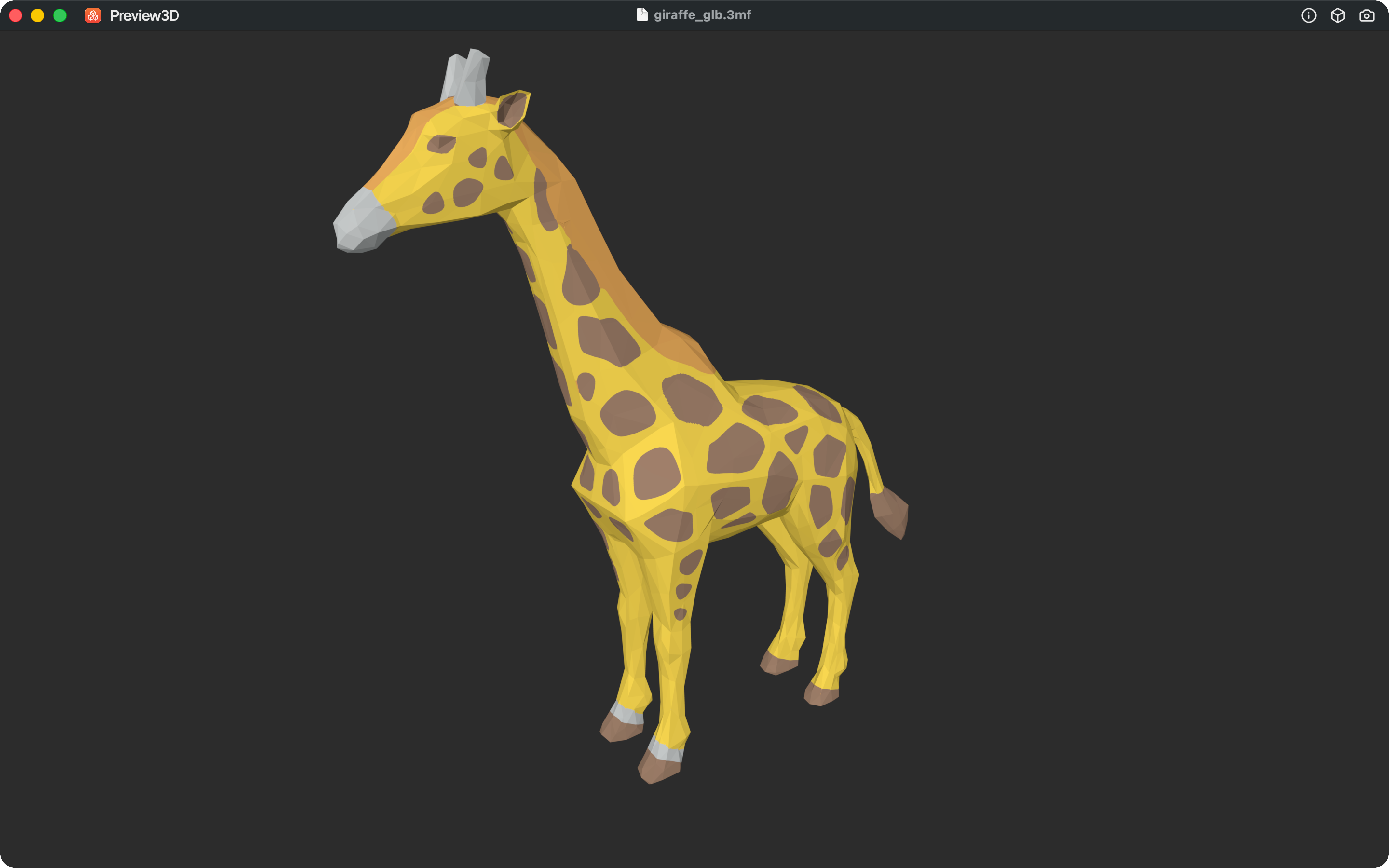
PrusaSlicer projects are saved as 3MF, so having previews for that format made sense too. And now that multi-colour models keep appearing, I wanted those previews in colour - including the painting for multi-material prints.
PrusaSlicer stores the painting as information attached to each individual triangle. Preview3D reads it and shows the model in its filament colours, including brush detail finer than a single triangle. So you see the finished multi-colour print before it leaves the slicer.
G-code - the toolpath, layer by layer
The last of the formats that matter for 3D printing are .gcode and the binary .bgcode. These files contain rendered previews — the ones you see on the printer, in Prusa Connect or in the Prusa app. So why not have them in the Finder as well. The preview works for both formats, and alongside the image it shows the print time, filament use and material.
When you open the file, you can switch to an interactive view, the kind you know from the preview in PrusaSlicer. Toolpaths are coloured by feature type (perimeters, infill, supports, bridges and more), using the same colour palette as PrusaSlicer.
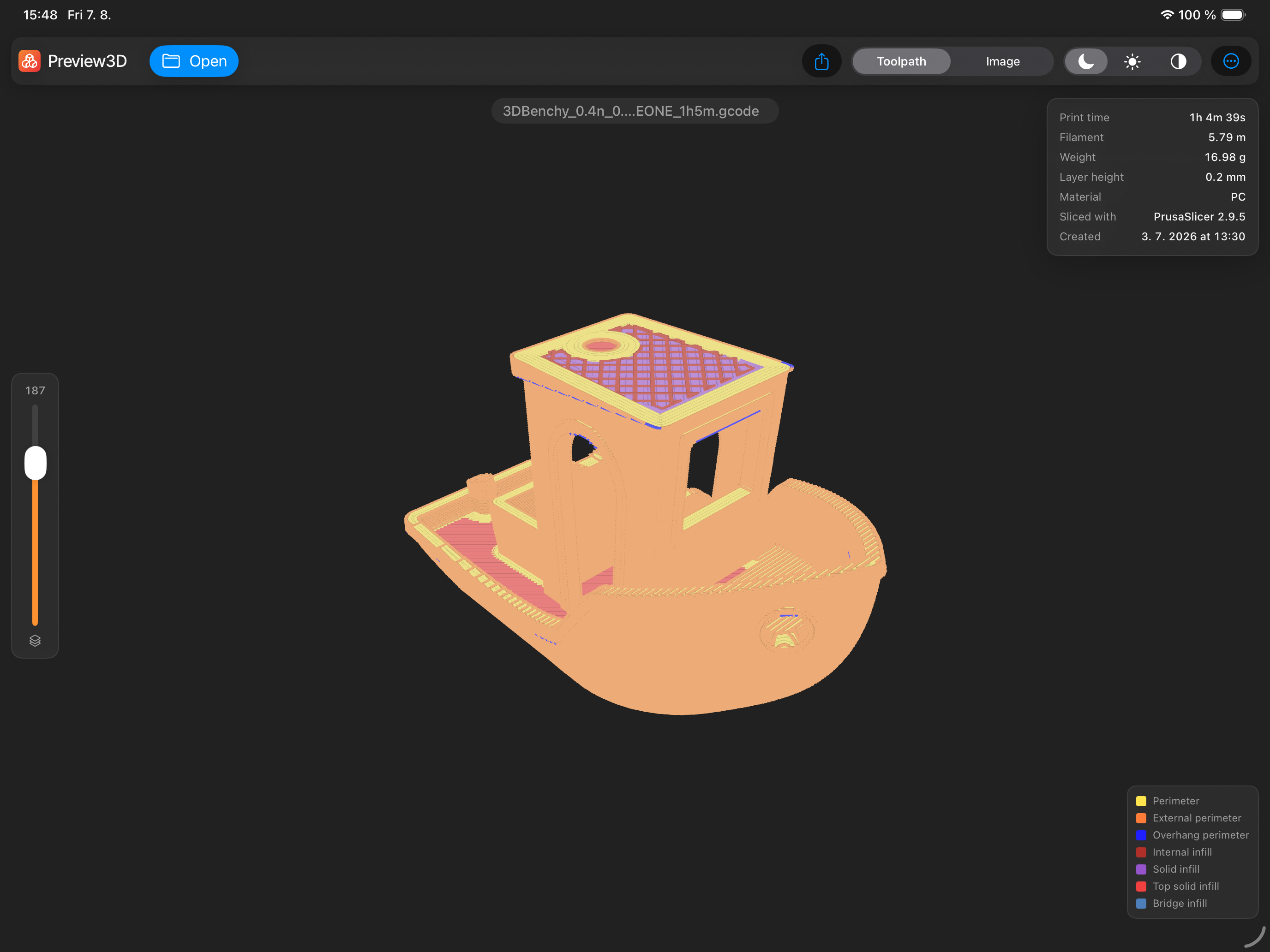
And it isn't only about G-code from PrusaSlicer - the app also understands the markers used by OrcaSlicer, Bambu Studio, Slic3r and Cura.
On the left there's a vertical layer slider. Drag it and you can look at the individual layers at any height.
The view is optimised for speed. A small model like a Benchy is drawn in full detail; larger and more complex models may be drawn in a simplified form so that moving around stays fast and smooth.
On iPad
The iPad does the same thing, layer slider included. On top of that you can use AR to place the model in the room and walk around it - handy for shapes that are hard to judge from a picture, or when you want to show something to someone else.
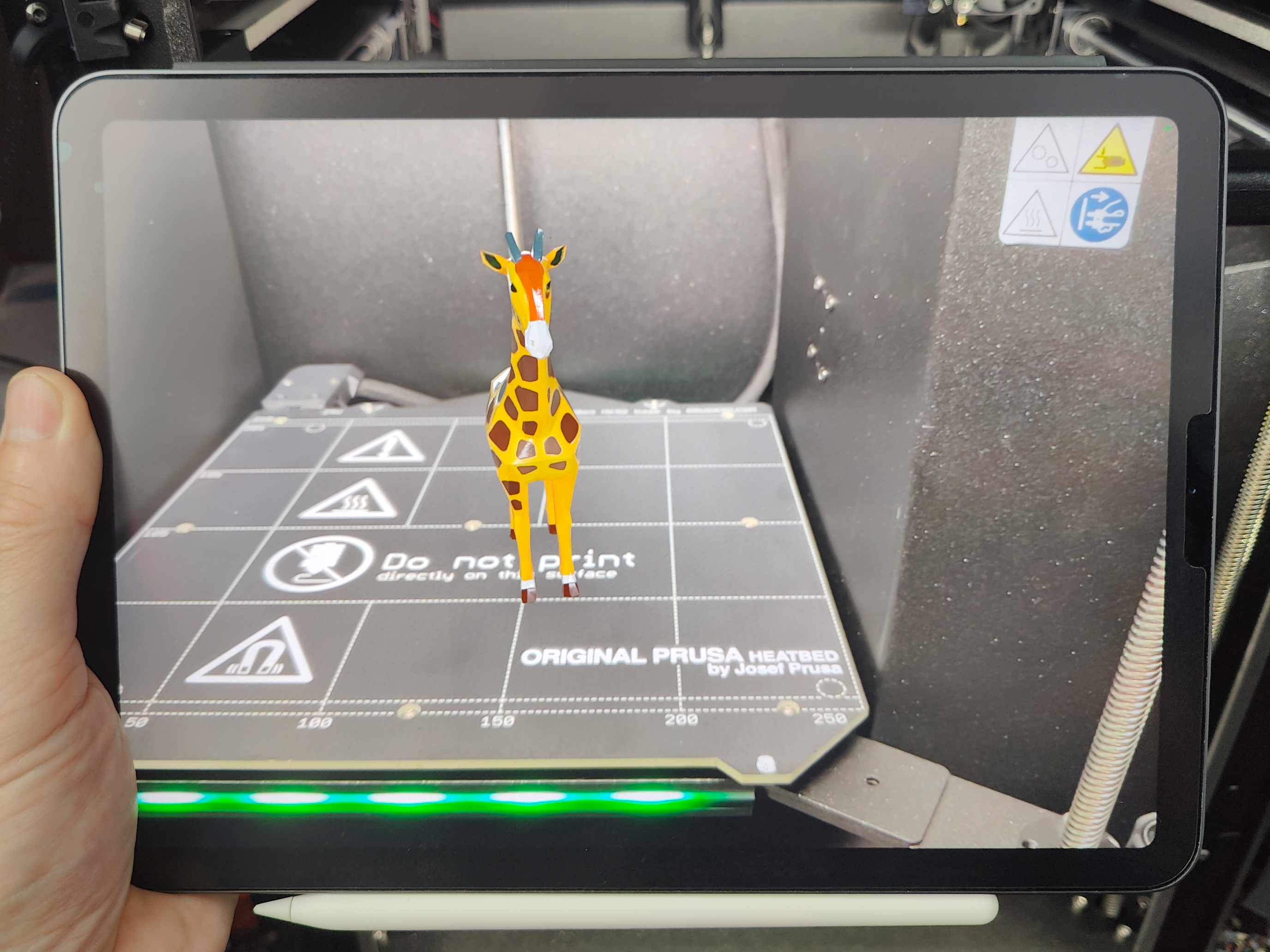
The model is placed in AR at roughly 20 cm, not at its real size. There's a reason: 3D files don't agree on units, and plenty of them carry no unit at all. You'll find the real dimensions in the info panel, in millimetres.
From a weekend idea to a $9.99 app
In the end, what started as an attempt to build a simple app for viewing STEP files turned into an app that does a great deal more. It was also a lot more work than I originally expected. So I decided to release it on the App Store for a one-time $9.99.
No subscription, no in-app purchases, no account. One purchase covers both Mac and iPad (Requires macOS 14+ or iPadOS 17+) The app has no network access - everything runs on your device and no file is sent anywhere.
If you give it a try, tell me what format you threw at it and whether it opened at product web page preview3d.xfanta.com or in comments. That's the feedback I care about most.
This article was first published on Printables.

Comments
No comments yet. Be the first.